

If you do the same admin job every week — copying form answers into a spreadsheet, chasing invoices, writing the same update email — that job is a candidate for automation. You do not need to code, and you do not need to automate everything at once. The safest first step is one small, rule-based task with a clear result you can check.
Start with a task audit, not a tool
For one week, note every task you repeat. For each one, ask:
- Does it follow the same steps every time?
- Is the result easy to check — a row added, an email sent, a file saved?
- What goes wrong if it fails?
Pick the task that scores well on all three. Email triage, invoice filing, meeting notes, and weekly reports are common first wins. Avoid starting with anything irreversible, such as sending money, deleting files, or messaging clients without review.
Workflow automation vs. an AI agent
These terms get mixed up, and the difference matters:
- Workflow automation follows steps you define in advance: when X happens, do Y, then Z. An AI model may handle one step, such as reading a messy invoice, but the path is fixed.
- AI agent is given a goal and chooses its own steps and tools.
For most repetitive office work, a fixed workflow with AI inside one or two steps is more predictable, cheaper to run, and easier to debug. Give the AI more freedom only where the task genuinely varies each time.
Build your first workflow in five steps
- Write the recipe. Trigger, inputs, rules, output. Example: “When a new contact-form submission arrives, save name, email and message to a sheet, then notify the team channel.”
- Choose a no-code tool. Zapier, Make, and similar tools connect apps with drag-and-drop steps. Pick the one that already connects the apps you use; do not rebuild your whole stack for one workflow.
- Keep a human approval step. Before anything leaves your business — an email to a client, a post, a payment reminder — route it to a person for review, at least for the first few weeks.
- Test on real past examples. Run the workflow on 10–20 old cases and compare the output with what you did manually. Fix the edge cases before you trust it live.
- Watch it for two weeks. Check the first runs, log failures, and note what still needs a human. A workflow that saves an hour a week but creates a weekly cleanup job has not saved anything.

Three starter workflows that actually help
Invoice filing. When an invoice email arrives, save the attachment to a dated folder, add a row to your finance sheet, and set a follow-up reminder. You still approve payment — the machine only files.
Weekly report. Pull last week’s closed deals, support tickets, or site visits into a draft report every Monday morning. A person edits and sends it. The value is in removing the gathering step, not in auto-sending an unchecked report.
Meeting follow-up. After a call, turn notes into a task list with owners and dates, and draft the follow-up email for review. Keep the draft step human-approved; tone and commitments are easy for AI to get wrong.
What not to automate yet
Do not automate sensitive data handling without checking the tool’s data policy: who stores the data, where, and for how long. If you handle client, financial, or health records, treat any new AI tool like a new vendor and get its terms in writing. Do not paste passwords, private client details, or unreleased work into a public AI tool.
Checklist before you switch a workflow on
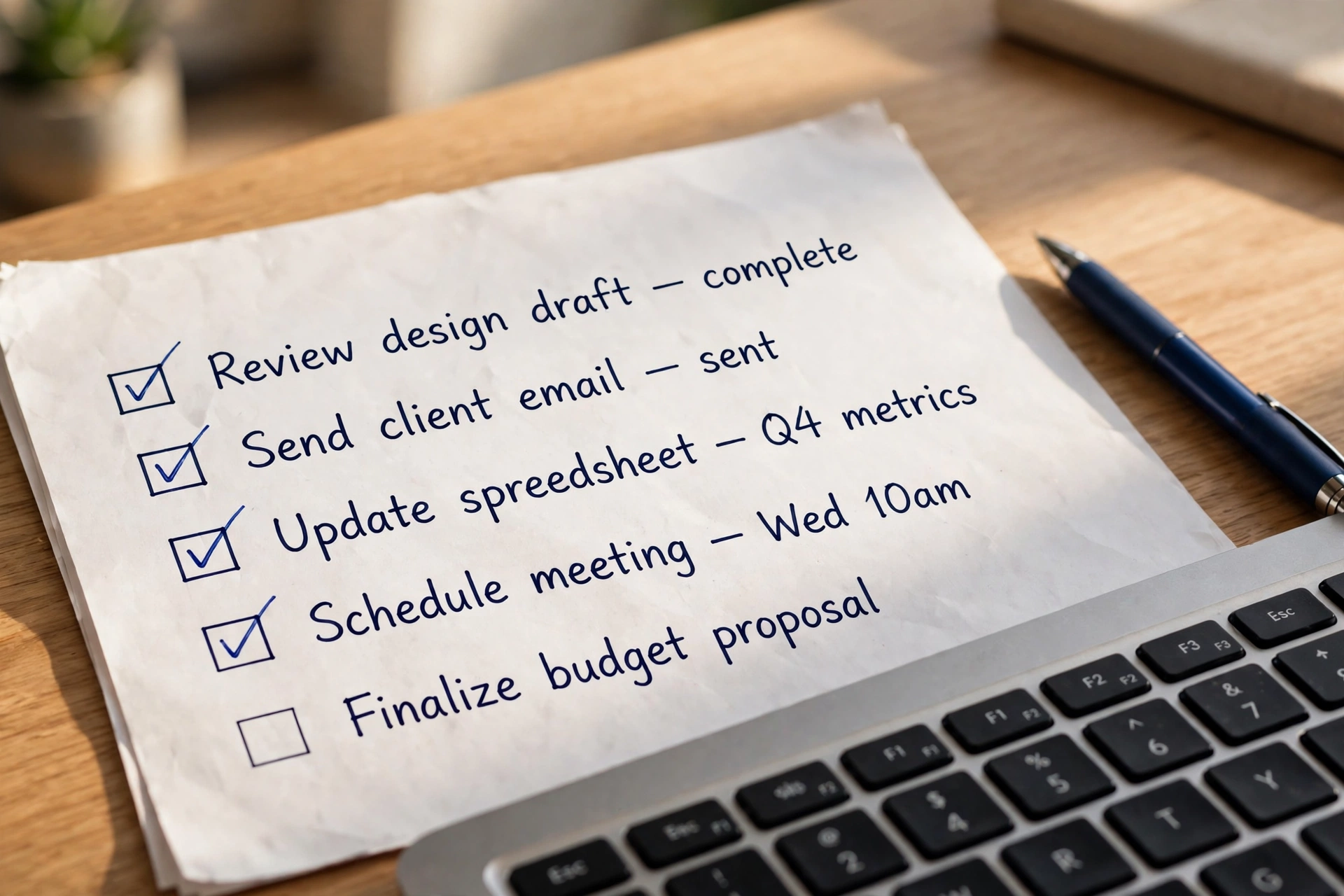
- The task is rule-based and its result is checkable
- A human reviews anything sent outside the business
- You tested it on real past examples
- You know what happens when a step fails
- You can turn it off in one place
FAQs
Do I need to learn to code to automate admin work?
No. No-code tools cover most trigger-to-action jobs. Coding helps only when you need custom logic or large volumes.
Will automation replace admin staff?
In practice it changes the job: less copying and filing, more checking, improving, and handling exceptions. Start with that framing with your team.
How long does a first workflow take?
A simple one can be built in a few hours. Making it reliable — tested, monitored, with a failure plan — is the part that takes longer, and it is worth doing.
What is the biggest beginner mistake?
Starting too big. Automate one task well, prove the saving, then add the next.
Related guides
Educational guide only. Xentello’s service pages are separate from this tutorial; tool names are examples, not endorsements or affiliate recommendations.
[…] unchecked, however good the draft looks. This is the same rule as for automation generally: keep a human approval step before anything leaves the business, at least until a workflow has proved itself over many runs — […]